
You know the feeling. It’s the “Twitch.”
You’re standing in line at the grocery store, or maybe you’re just waiting for the coffee machine to heat up. You have twelve seconds of downtime. Before you even decide to do it, your hand is in your pocket. Your thumb unlocks the screen, and suddenly you’re five minutes deep into a feed of people you barely know, looking at photos of sandwiches you’ll never eat.
It’s not your fault. Your phone is a carnival. It’s painted in “Notice Me” Red and “Trust Me” Blue. Every icon is designed to look like a piece of candy that your lizard brain wants to eat.
There is a whole industry of gadgets trying to solve this. You’ve probably seen the ads for those “minimalist” phones—the e-ink bricks, the credit-card-sized communicators, the devices that cost $400 just to promise you they won’t do anything.
I love those devices. I review them. But here is the secret the tech industry doesn’t want to say out loud:
You can get 90% of that “dumbphone” peace on the iPhone you already own, for zero dollars.
You just have to wash the color out of it.
The “Visual Sugar” Theory
Biologically, we are hardwired to notice bright colors. In nature, bright red means “ripe fruit” or “poisonous frog.” In either case, it demands attention.
When your phone is in full color, your brain is constantly scanning a fruit salad of information. Look at this badge! Check this news alert! It’s exhausting, even if you don’t realize it.
When you turn that same screen grayscale, the magic dies. Instagram looks like a spreadsheet. A red notification badge just looks like… a gray circle. It turns your $1,000 supercomputer back into what it should be: a tool. Like a hammer, or a calculator.
Tools are useful, but you don’t stare at a hammer for fun.
Why Your Phone Loves the Color Red
Have you ever noticed that every “urgent” thing on your phone is red? The notification badges are red. The “battery dying” icon is red. The “live” recording button is red.
That isn’t an artistic choice. It’s a hack.
In the wild, red is the most expensive color signal nature has. It usually means one of two things: “This will kill you” (fire, blood, poison dart frogs) or “This will keep you alive” (ripe berries, fresh meat).
Your brain effectively has a VIP lane for the color red. It skips the logical part of your mind and goes straight to the “Act Now” center. When a developer puts a red dot on an app icon, they are hijacking that survival instinct. They are using the same biological signal as a bleeding wound to tell you that someone liked your photo.
When you turn on grayscale, you are essentially cutting the wire on that alarm system. The notification is still there, but it’s just a gray circle. It doesn’t scream at you. It waits for you.
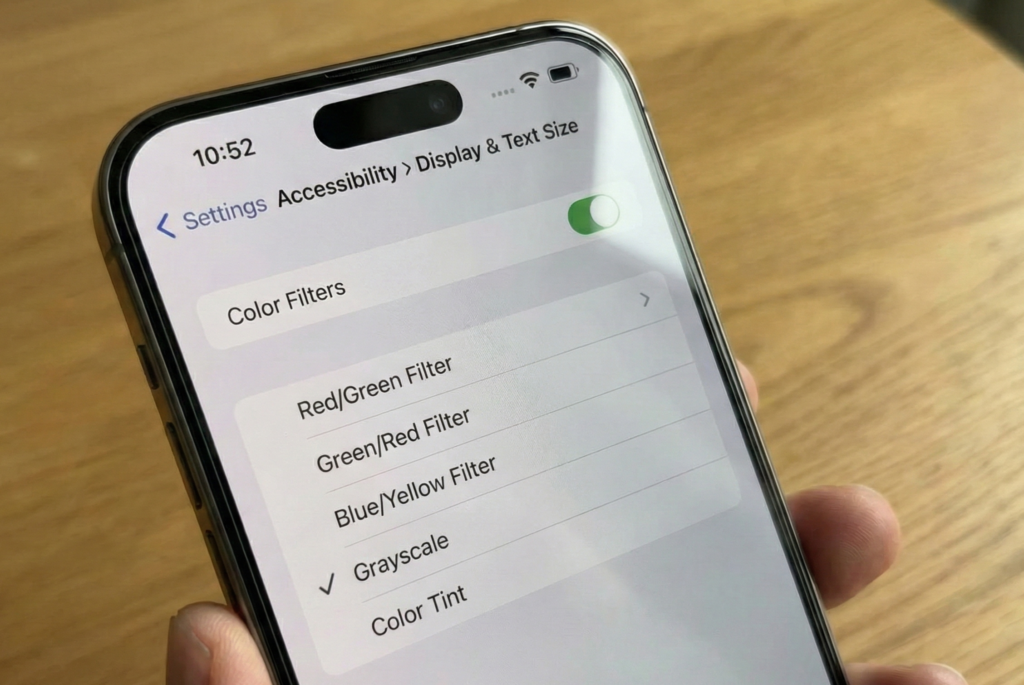
How to Make Your iPhone Boring (The Settings)
Here is how to drain the color. It takes about thirty seconds.
Go to your Settings and find Accessibility. Inside there, tap on Display & Text Size. Scroll down a bit until you see Color Filters. Toggle it ON and select Grayscale.
The change is instant. And honestly? It’s kind of depressing at first. Your beautiful retina display looks like a muddy newspaper.
But that “bleh” feeling is the point. That’s the medicine working.
The Magician’s Trick: The “Triple-Click”
Now, if you leave your phone in grayscale forever, you’re going to hate it. Sometimes you actually need color—like when you’re taking a photo of your kid or trying to read a color-coded map.
If you have to dig through four layers of menus every time you need to see red and green, you’ll just turn the feature off and never use it again.
This is where the “Triple-Click” comes in. This is the feature that makes this sustainable.
- Go back to the main Accessibility menu.
- Scroll to the very bottom and find Accessibility Shortcut.
- Tap it and select Color Filters (put a checkmark next to it).
Now, try this: Click your side power button three times fast.
Click-click-click. The color floods back in. Click-click-click. It’s gone.
This gives you physical control over your attention. I keep my phone in grayscale by default. When I need to see a photo, I triple-click. When I’m done, I triple-click again to “lock” the distraction back up. It’s incredibly satisfying, like flipping a breaker switch in your house.
Can You Do This on Android?
Yes. It’s just not as tactile.
On most Androids (Samsung, Pixel), you’ll dig into Settings > Accessibility > Visibility Enhancements > Color Correction. You can set it to Grayscale there.
You can also add a toggle to your “Quick Settings” pulldown menu (the shade you drag from the top), which is faster than digging through menus, but it lacks the physical satisfaction of the iPhone’s button mash.
The Weird Side Effects (Good and Bad)
I realized this was working about three days in, thanks to a cheeseburger.
I was hungry, so I opened a food delivery app. Usually, this is a dangerous trap where I spend twenty minutes drooling over high-definition photos of greasy food. But in grayscale, the burger looked… awful. It looked like gray sludge on a bun. The fries looked like cardboard.
Without the golden yellows and saturated reds, the food didn’t look appetizing. It just looked like calories. I closed the app and made a sandwich. My wallet (and my waistline) thanked me.
But there is a flip side. You will realize very quickly that some apps are impossible to use in black and white.
Google Maps is the big one. In grayscale, water looks exactly like land. I almost missed a turn because I couldn’t tell that the gray line was a river, not a road. This is why the “Triple-Click” trick isn’t just a nice-to-have feature—it is mandatory. You need to be able to snap back to reality when safety is involved.
When I unlock my phone now, there’s no shiny fruit waiting for me. It’s just data. I check the weather, I send the text, and I put it back in my pocket. The loop is broken.
It’s the first step to taking back control. The second step? Getting the thing off your nightstand entirely.
Try it for 24 hours. You might realize that the world is colorful enough on its own.
Frequently Asked Questions (That You’re Probably Thinking)
Does this actually save battery life? Technically, yes. If you have a newer iPhone (iPhone X or later), the screen uses OLED technology. That means black pixels are actually “off” pixels. Turning the screen gray and using “Dark Mode” means your phone is doing less work. It’s not going to double your battery life, but it definitely helps.
Will this mess up my photos? No. The grayscale filter is just a layer on top of your screen. Your actual photos and screenshots are still being taken in full color. If you send a photo to your wife, she sees it in color. You’re the only one living in black-and-white.
How do I toggle it off quickly? That’s what the “Triple-Click” is for. Go to Settings > Accessibility > Accessibility Shortcut and check Color Filters. Now, whenever you need to see a map or a photo, just click the side power button three times. Click it three times again to go back to boring mode.